Organisation Setup
Use this guide to set up an organization in the Envio hosted service and grant access to your team.
Creating an Organization
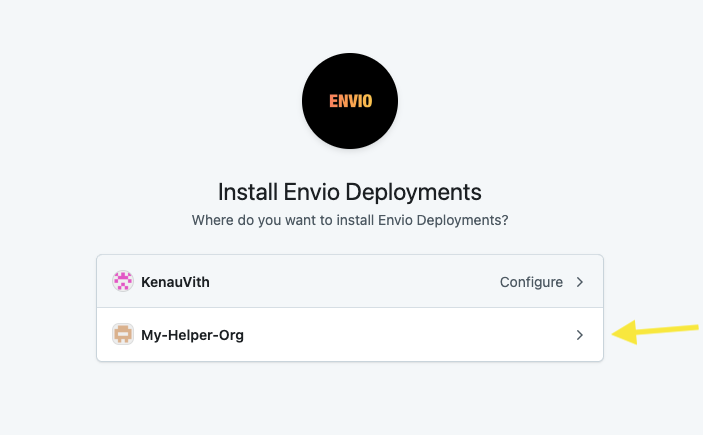
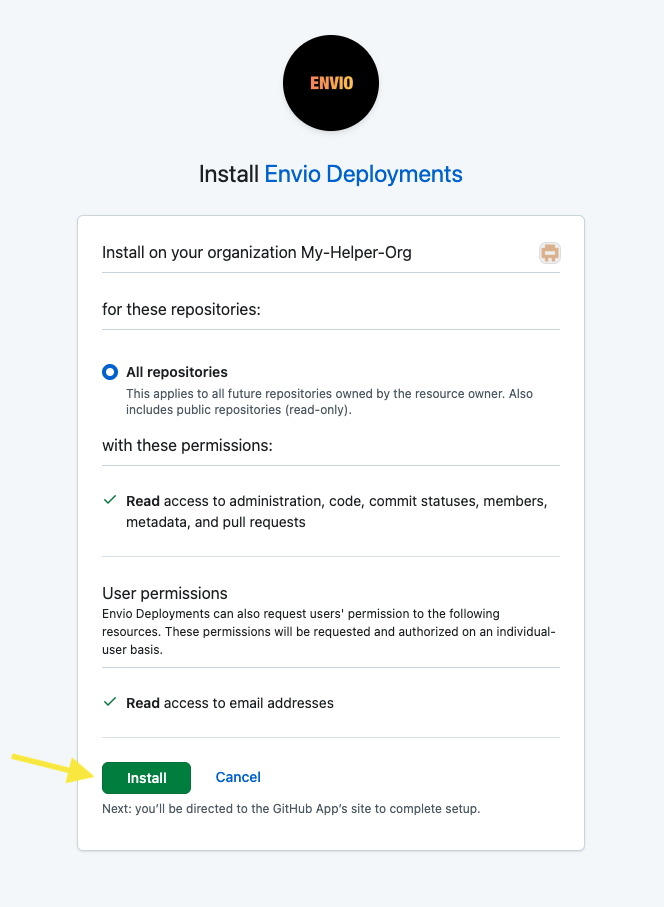
To create a new organization, open the Envio hosted service at https://envio.dev and log in with GitHub. In the top-left menu, select + Add new organisation. This action redirects you to GitHub, where you can install the Envio Deployments app for the relevant GitHub organization.

On GitHub, choose the organization you want to enable and complete the installation. Once approved, GitHub returns you to the new organization's page in the hosted service UI.
Access Control
Being a member of the GitHub organization does not automatically grant access to the organization in the Envio hosted service UI. Each member must be explicitly added by the organization admin. If someone attempts to visit the organization URL (e.g., https://envio.dev/app/<org-name>) without being added, they'll see a "You are not a member of the project" message.

Adding Members
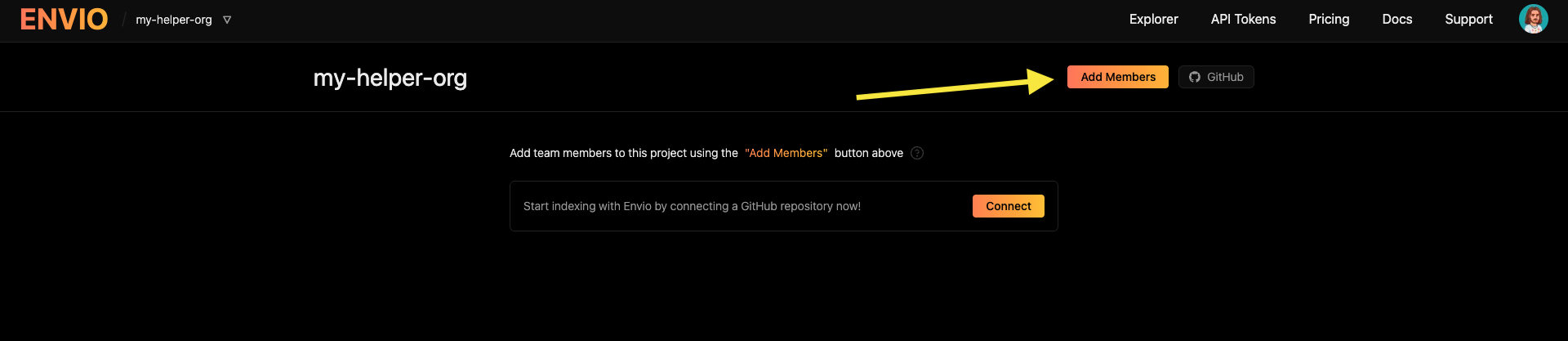
The organization admin must add members from the organization page in Envio. Open the Add Members view to see all users associated with your GitHub organization, then grant access by selecting Add member next to each person.
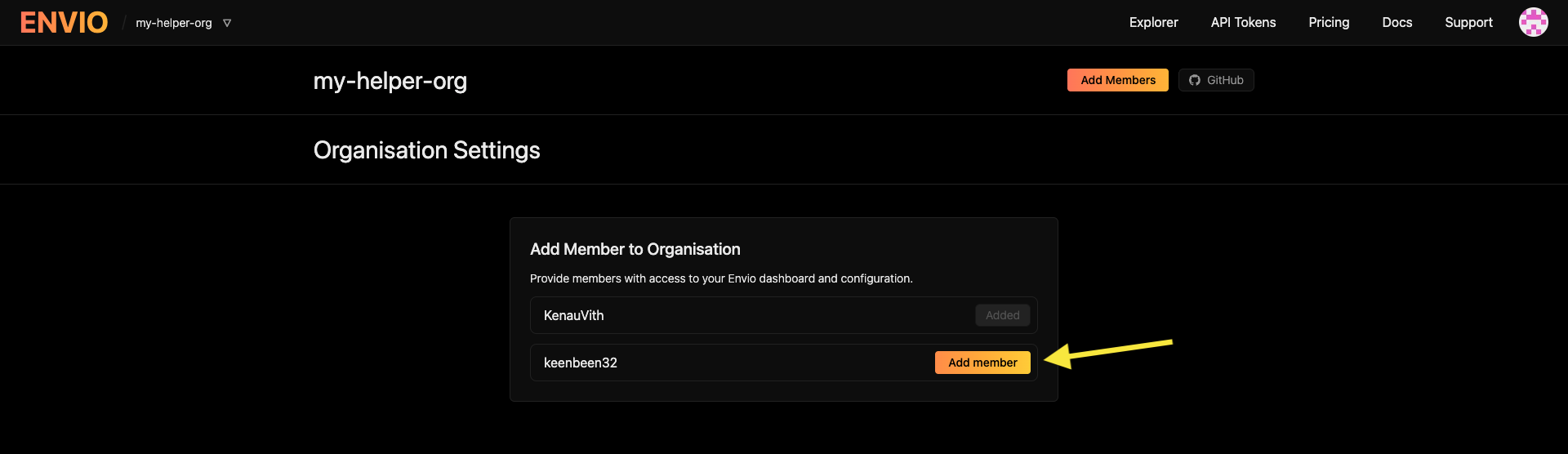
Once added, members should be able to access the organization's page in the hosted service UI and start creating projects!